How to Get an Instagram Access Token for Posting (No Facebook Page)
Most guides for the Instagram access token are for the old Basic Display API, which can't post. This one covers the token that can, how to make it in your own Meta app, and how to keep it alive.
By The Vimitron Team · · 12 min read
What an Instagram access token is, and why posting needs one
An access token is a long string that tells Instagram "this app may act for this account". When a tool posts a photo for you, it never sees your password. It sends the token instead, and Instagram checks what that token is allowed to do. That is the whole idea, and it is why the token matters so much: whoever holds it can post as you until it expires or you revoke it.
A lot of search results for this topic are out of date. Meta shut down the Basic Display API in December 2024, and the guides built on it only ever let you read a feed. They can't publish. Posting needs a token from the Instagram API with Instagram Login (or, on the older route, Facebook Login), with the publish permission switched on. This guide covers that token from start to finish.
The short version. Create a Business-type app at developers.facebook.com, add the Instagram product, open API setup with Instagram login, and click Generate token next to your account. The token lasts 60 days and works for your own account without App Review. You do not need a Facebook Page on this route.
What you need before you start
| Requirement | Detail |
|---|---|
| Instagram professional account | Business or Creator. Personal accounts can't grant a posting token. Switching takes a minute under Settings, Account type and tools, and keeps your followers and posts. |
| Meta developer account | Free. Sign in at developers.facebook.com with a Facebook login and accept the developer terms. The Facebook profile is only for the developer console, not for posting. |
| A Business-type Meta app | If you already have an app of another type, create a new one. Only Business apps can add the Instagram product with Instagram login. |
| A place to paste the token | A posting tool, a script or a workflow. Treat the token like a password from the second you copy it. |
You do not need business verification, a company, a privacy policy URL or a review from Meta to post to your own account. The reason is the access level, which the next section explains.
Why your own app works without App Review
Meta gives every new app Standard access. It is meant for apps used by people who have a role on the app, which means you, plus anyone you add as an admin, developer or tester. Inside that circle the publish permission works normally, with real posts on real accounts.
Advanced access is the other level. You need it when the app serves Instagram accounts you don't own, or when people without a role on the app can use it. Advanced access requires App Review and Business Verification. That is the hard part of building a public Instagram tool, and it is exactly what you skip when each person makes their own app and token for their own account.
So the trade is simple. You do a few minutes of setup in the Meta dashboard once, and in return nobody has to approve you. The app can stay in Development mode forever, because the only person using it is you.
Instagram Login or Facebook Login
There are two supported ways to get a token that can publish. They differ in what the account has to be linked to.
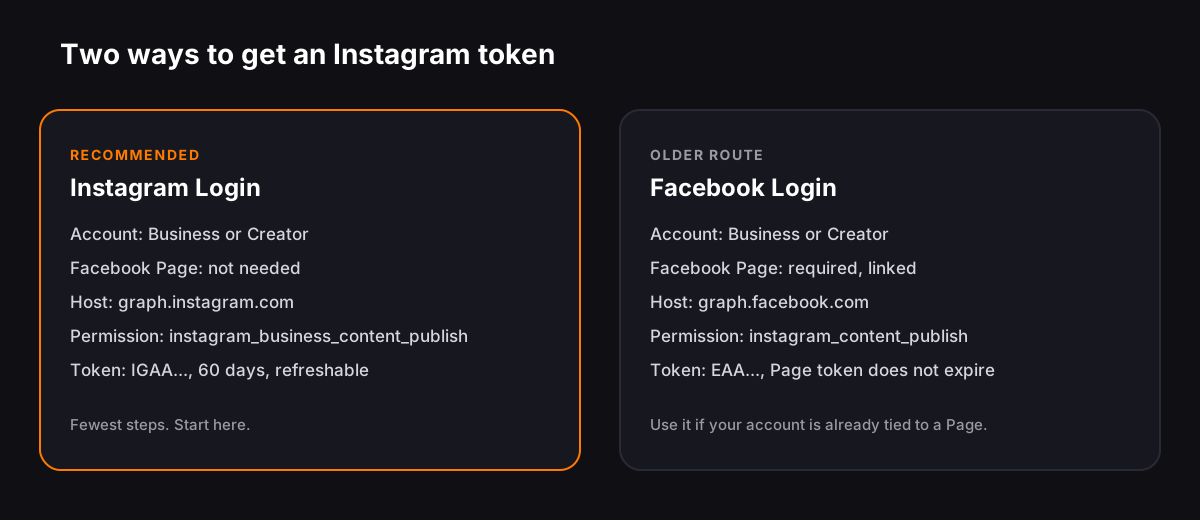
| Difference | Instagram Login | Facebook Login |
|---|---|---|
| Facebook Page needed | No | Yes, linked to the account |
| Token starts with | IGAA | EAA |
| API host | graph.instagram.com | graph.facebook.com |
| Publish permission | instagram_business_content_publish | instagram_content_publish |
| Token lifetime | 60 days, can be refreshed | User token 60 days; a Page token made from a long-lived user token does not expire |
Pick Instagram Login unless your account already lives behind a Facebook Page and you want to keep it that way. The rest of this guide follows Instagram Login, and there is a short section on the Facebook route near the end.
Get the token in the Meta dashboard
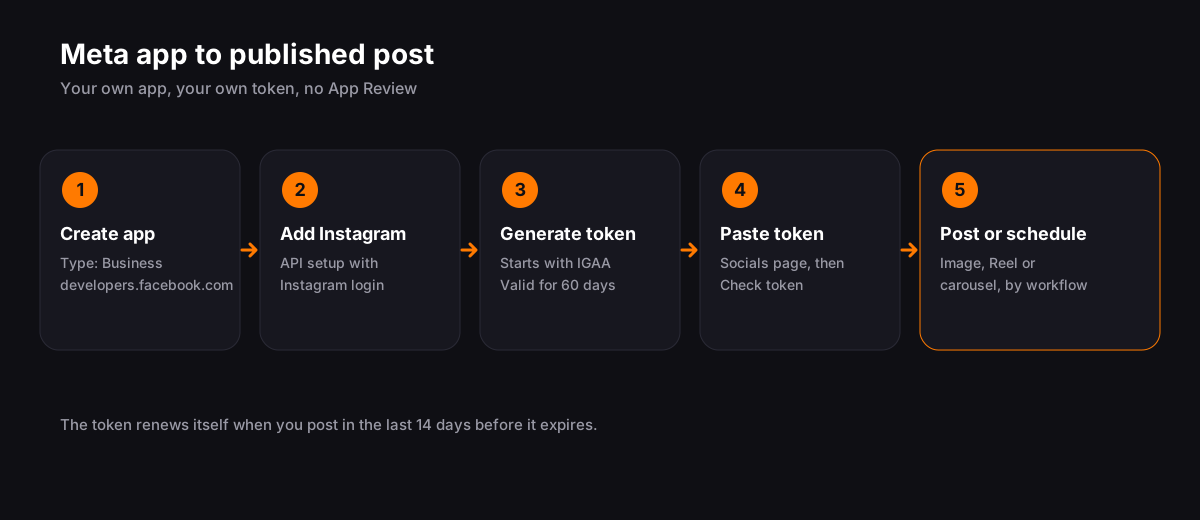
- Create the app: Go to developers.facebook.com, open My Apps and choose Create app. Name it anything you will recognise, such as your brand name plus "posting". When it asks for the app type, pick Business. Skip any request to connect a business portfolio if the screen lets you.
- Add the Instagram product: In the app dashboard, find Add product (or the product list in the left menu) and add Instagram. Then open Instagram, API setup with Instagram business login. This page is where everything else happens.
- Add your Instagram account: Under Generate access tokens, use the button to add your Instagram account and approve the login. If Meta says the account must be invited as a tester first, add it under App roles, Roles, as an Instagram tester, then accept the invite in the Instagram app (Settings, then Apps and websites, then Tester invites). Menu names move around, so search the settings for "tester" if you can't find it.
- Generate and copy the token: Click Generate token next to your account, log in to Instagram if asked, and copy the token that appears. It starts with IGAA. Meta shows it once, so paste it somewhere safe right away. Tokens made on this page are long-lived and last 60 days.
- Check the permission: Posting needs instagram_business_content_publish, and reading the account needs instagram_business_basic. If the permissions are listed on the same page, make sure both are enabled before you generate the token. A token made without the publish permission will read the profile fine and then fail the first time it tries to post.
If the page looks different. Meta changes labels and moves buttons several times a year. The names above come from Meta's current developer docs and recent guides. If a menu isn't where this says, look for the same words (Instagram, API setup, Generate token) rather than the exact position.
Check that the token works before you use it
Do this once, right after you copy the token. It takes ten seconds and saves a lot of guessing later. Ask Instagram who the token belongs to.
curl "https://graph.instagram.com/v25.0/me?fields=user_id,username,account_type&access_token=YOUR_TOKEN"A good answer is a small JSON object with your user_id, your username and an account_type of Business or Media_Creator. The user_id is the number you use in publishing calls, so keep it. If you get an error such as "Invalid OAuth access token", the token was copied with a space or a missing character, or it came from the wrong place (a token starting with EAA belongs to the Facebook route, not this one).
Vimitron runs this same check when you press Check token, and shows you the account it found before anything is saved. If you would rather not touch curl, that button does the job.
Use the token to post
In Vimitron, open the Socials page, choose Instagram and press Use your own token. Paste the token, press Check token, confirm the account that appears, then connect. The token is stored encrypted and is never shown again. After that, the Instagram node in any workflow can publish to the account now or at a date and time you set. The social publishing guide covers captions, formats and scheduling.
If you are writing your own code instead, Instagram publishing is always two calls. The first creates a media container from a public image URL. The second publishes that container.
# 1. Create the container (image must be a public JPEG URL)
curl -X POST "https://graph.instagram.com/v25.0/YOUR_USER_ID/media" \
  -d "image_url=https://example.com/photo.jpg" \
  -d "caption=Hello from the API" \
  -d "access_token=YOUR_TOKEN"

# 2. Publish it, using the id returned above
curl -X POST "https://graph.instagram.com/v25.0/YOUR_USER_ID/media_publish" \
  -d "creation_id=CONTAINER_ID" \
-d "access_token=YOUR_TOKEN"- Images must be JPEG. PNG and WebP uploads are rejected by the publishing endpoint, so convert before you send.
- The media URL must be public. Instagram downloads the file itself, so a link behind a login or a local address fails.
- Videos and Reels take a moment. Create the container with the video URL, then check its
status_codeabout once a minute (Meta suggests no more than five minutes) until it says FINISHED, and only then publish. - There is a daily cap. Meta's docs say 100 API-published posts in a rolling 24 hours, and a different page of the same docs says 50. Plan for 50 and check the current number in the docs.
Keep the token alive: the 60 day rule
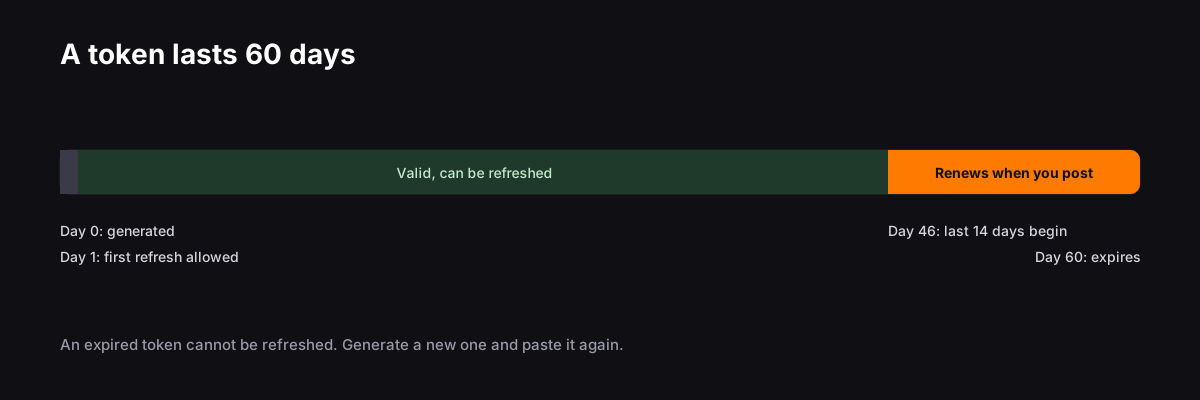
The token from the dashboard is valid for 60 days. You can ask Instagram for a fresh one that lasts another 60 days, but only under three conditions: the token is at least 24 hours old, it hasn't expired, and the instagram_business_basic permission was granted. Miss the window and the token is finished. Meta's docs are blunt about it: a token not refreshed within 60 days expires and can no longer be refreshed.
curl "https://graph.instagram.com/refresh_access_token?grant_type=ig_refresh_token&access_token=YOUR_TOKEN"The answer contains a new access_token and an expires_in of about 5,184,000 seconds, which is 60 days. Replace the old token with the new one, because the old string may stop working.
Vimitron does the refresh for you. Whenever an account with your own token is used in its last 14 days, the token is renewed first and the new one is saved, so an account that posts at least once every few weeks never expires. An account you don't use for 60 days still runs out, and then you generate a new token in the dashboard and paste it again.
The Facebook Login route, if your account is tied to a Page
Some accounts are already linked to a Facebook Page and used through it. For those, the Facebook route also works, and it can post to the Page itself. The steps are different.
- Open the Graph API Explorer, choose your app, and generate a user token with pages_show_list, pages_manage_posts and pages_read_engagement (add instagram_content_publish if you also post to Instagram through the Page).
- That token lasts about an hour. Open the Access Token Debugger, paste it, and press Extend Access Token to get one that lasts about 60 days.
- Page tokens made from a long-lived user token don't expire on their own, so for posting to a Page you can list your Pages with the long-lived user token and use the Page's own token from then on.
In Vimitron, choose Facebook, press Use your own token, paste the user token or a Page token, check it, and pick the Page from the list. The Page token stays on the server and is never sent back to your browser.
Errors you are likely to hit
| What you see | Likely cause | Fix |
|---|---|---|
| Invalid OAuth access token | The token has a stray space, was cut off when copied, or is the wrong kind (EAA instead of IGAA) | Copy it again from the dashboard and paste it without spaces. |
| Token works for /me but posting fails with a permission error | instagram_business_content_publish was not enabled when the token was made | Enable the permission, generate a new token and replace the old one. |
| The account is a personal account | Only Business and Creator accounts can post through the API | Switch the account type in Instagram settings, then generate a new token. |
| The tester invite never appears | The invite is pending or the account was added with a typo | Check the username in App roles, wait a few minutes, then look in Settings, Apps and websites, Tester invites. |
| Media could not be fetched | The image URL is private, local or expired | Use a public https URL that works in a private browser window. |
| Error about image format | The file is PNG or WebP | Convert the image to JPEG before publishing. |
| Posting stopped after about two months | The token reached day 60 without being refreshed | Generate a new token and paste it again. Posting at least once every few weeks prevents this. |
Keep the token safe
- Never put it in a public repository, a screenshot or a chat message. Anyone with the token can post as the account until it expires.
- Store it encrypted. Use an environment variable or a secrets store in your own code. Tools that hold it for you should encrypt it and never show it again, as the Socials page does.
- Revoke it if it leaks. Generating a new token in the dashboard, or removing the Instagram account from the app, invalidates the old one.
- Use one app per person. If several people use one app and one leaks a token, everyone's token is at risk. A separate app costs nothing.
- Post only what you have the right to post. Keep to Instagram's rules, label AI-generated images where Instagram asks you to, and never automate likes, follows or comments.
From token to a posting routine
Once the token works, the hard part is over. Most people connect the account, run one post by hand to see it land, and then build a workflow that generates the image and caption on a schedule. The Instagram auto posting guide walks through that second half, with templates you can copy.
Connect Instagram with your own token Paste a token, check the account it finds, and start posting or scheduling. Free to try. Open Socials
Frequently asked questions
How do I get an Instagram access token for posting?
Create a Business-type app at developers.facebook.com, add the Instagram product, open API setup with Instagram business login and click Generate token next to your Business or Creator account. The token starts with IGAA, lasts 60 days and needs the instagram_business_content_publish permission to post.
Do I need a Facebook Page to get an Instagram access token?
Not with Instagram API with Instagram Login. That route needs only an Instagram Business or Creator account. The older Facebook Login route does need a Facebook Page linked to the account.
Do I need App Review or business verification to post to my own account?
No. A new app has Standard access, which works for people who have a role on the app. Posting to your own account is covered. App Review and Business Verification are needed for Advanced access, which is for serving accounts you don't own.
How long does an Instagram access token last?
A token generated in the app dashboard is long-lived and lasts 60 days. A short-lived token from the login flow lasts about an hour. Both can be turned into or renewed as a 60 day token while they are still valid.
How do I refresh an Instagram access token?
Call graph.instagram.com/refresh_access_token with grant_type=ig_refresh_token and your token. It must be at least 24 hours old and not expired. A successful call returns a new token valid for another 60 days.
What happens if my Instagram access token expires?
An expired token can't be refreshed. You generate a new one in the Meta dashboard and replace the old one. Refreshing before day 60, or posting regularly through a tool that refreshes for you, avoids this.
Can I post to a personal Instagram account with the API?
No. Only Business and Creator accounts can publish through the API. Switching a personal account to a professional one takes a minute in Instagram settings and keeps your followers and posts.
Is it safe to paste my Instagram access token into a tool?
It is as safe as the tool is careful. Look for encrypted storage, no password request, and a way to revoke access. You can always generate a new token in your Meta app, which cuts off the old one.