Get a Telegram Alert When a Website Changes (No Code)
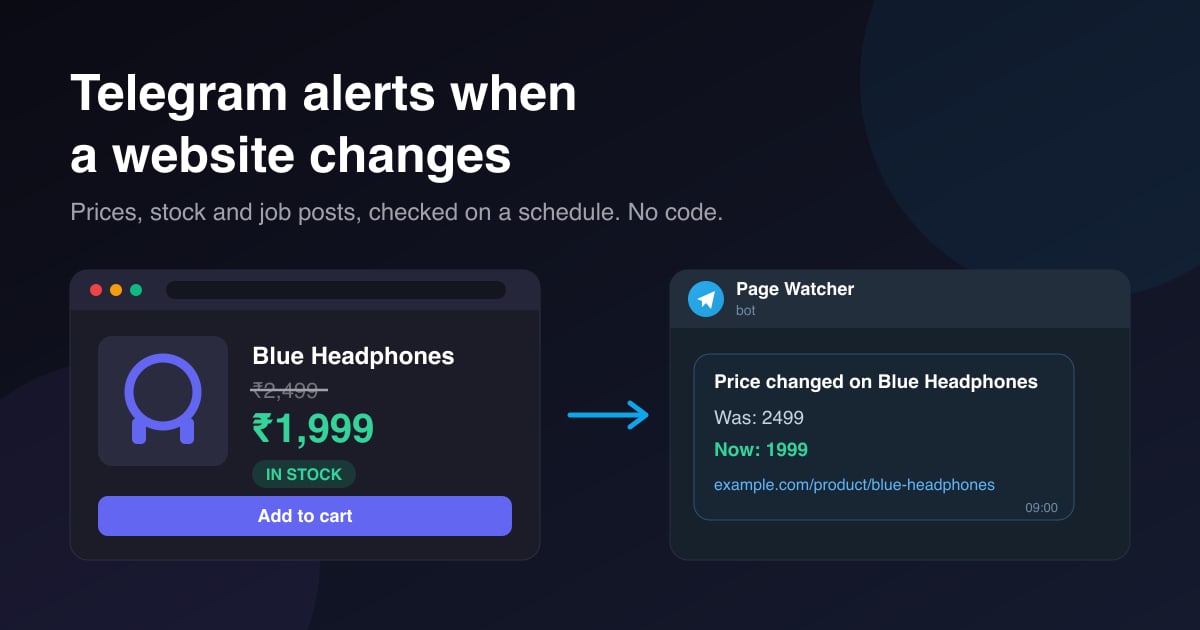
Refreshing the same product or careers page every day gets old fast. This guide builds a small workflow that reads one page on a schedule, compares it with what it saw last time, and messages you on Telegram only when something actually changed.
By The Vimitron Team · · 11 min read
Why get a Telegram alert when a website changes
Some pages are only interesting on the day they change. The headphones you want drop by a few hundred rupees for a weekend. A sold-out size comes back for six hours. A company you like posts the one role you have been waiting for, and it fills before you notice. Checking by hand works until the day you forget.
Dedicated change monitors exist and they are good at what they do. This guide takes a different route: you build the watcher yourself in the visual workflow editor, so the alert lands in Telegram, it says exactly what you want it to say, and the same workflow can do more later, such as post the deal to a channel. No code is involved and nothing has to run on your computer.
Short answer. Schedule a workflow where an AI Agent node reads the page and reduces it to one short line, such as a price. An If node compares that line with the value saved last time. When they differ, a Telegram node sends the old and new value, and a Set Fields node saves the new one for the next run.
- Schedule
- AI Agent (read the page)
- If (same as last time?)
- Telegram
- Set Fields (save)
What you can watch, and which pages work
The pattern is the same for every use. Only the instruction that tells the agent what to pull out of the page changes. These are the three people ask for most, plus a few that work just as well:
| What you watch | What the agent writes down | When you get a message |
|---|---|---|
| A product price | The price as a plain number, such as 1999 | The number is different from last time |
| Stock on a product or size | IN_STOCK or OUT_OF_STOCK | It flips either way |
| Job posts on a careers page | The job titles, sorted, one per line | A title appears or disappears |
| Exam results, admission or tender notices | The newest notice title | A new notice is at the top |
| A changelog or pricing page | The latest version number or plan prices | Anything in that line changes |
How the page is read
The agent's Read a page tool downloads the page the way a simple browser without JavaScript would. It drops menus, footers and scripts, keeps headings, paragraphs and list items, and passes up to about 6,000 characters of that text to the model. It never logs in. That decides which pages are a good fit:
- Good: small brand stores, a company's own careers page, government and university notice boards, blogs and changelogs. Their text is in the page itself.
- Poor: pages that build their content in the browser after loading, pages behind a login, and very long listings where the part you care about is past the first few thousand characters.
- Tricky: a price shown on its own in a small label can be skipped, because very short fragments are treated as page furniture. The test in the next section tells you in one run whether your page has this problem.
Watch politely, and only where it is allowed. Read the site's terms before you point a schedule at it. Many large marketplaces forbid automated access and block it, and most of them have their own wishlist or price alerts that you should use instead. Keep the schedule gentle, never more than once an hour, and use what you collect for your own decisions rather than republishing it.
How the workflow decides that something changed
The easy way to build this is to show the agent yesterday's page and ask it whether anything changed. It works, but a language model asked an open question will sometimes call a reworded sentence a change, or miss a single digit. For a price that is not good enough.
So this design splits the job. The agent does only what it is good at, which is reading a messy page and writing down one short, fixed-format answer. The comparison is done by an If node, which checks the two values character for character. The same page gives the same line, so you only hear about real changes.
The memory between runs is a variable, a saved value that belongs to your account. Any node can read it with {{ $vars.name }}, and any node can write to it through its Save output to variables setting. This guide uses one variable, watch_price_last, which holds whatever the agent wrote down on the previous run.
Before you start: three quick checks
- Connect a Telegram bot: Create a bot by messaging @BotFather and sending
/newbot. Open Socials, choose Connect Telegram and paste the token. Then send your new bot any message from your phone, so it records your private chat and you can pick it in the node. - Create the variable: In the workflow editor, open Variables in the toolbar and add
watch_price_lastwith the valuenone. If the variable is missing, the expression is left as plain text and every run would look like a change. - Check that the page is readable: Add an AI Agent node with only Read a page turned on, give it the task below with your link, and press Run. If the answer contains the price, stock text or job titles you care about, the page will work.
Read https://example.com/product/blue-headphones and write out, as plain text,
every heading, price, stock message and list item you can see on the page.
If the important part is missing from that answer, the page loads it with JavaScript or hides it in a short label. Try the mobile version of the page, a print view, or a category page that lists the same product with its price, and run the test again.
Build the workflow step by step
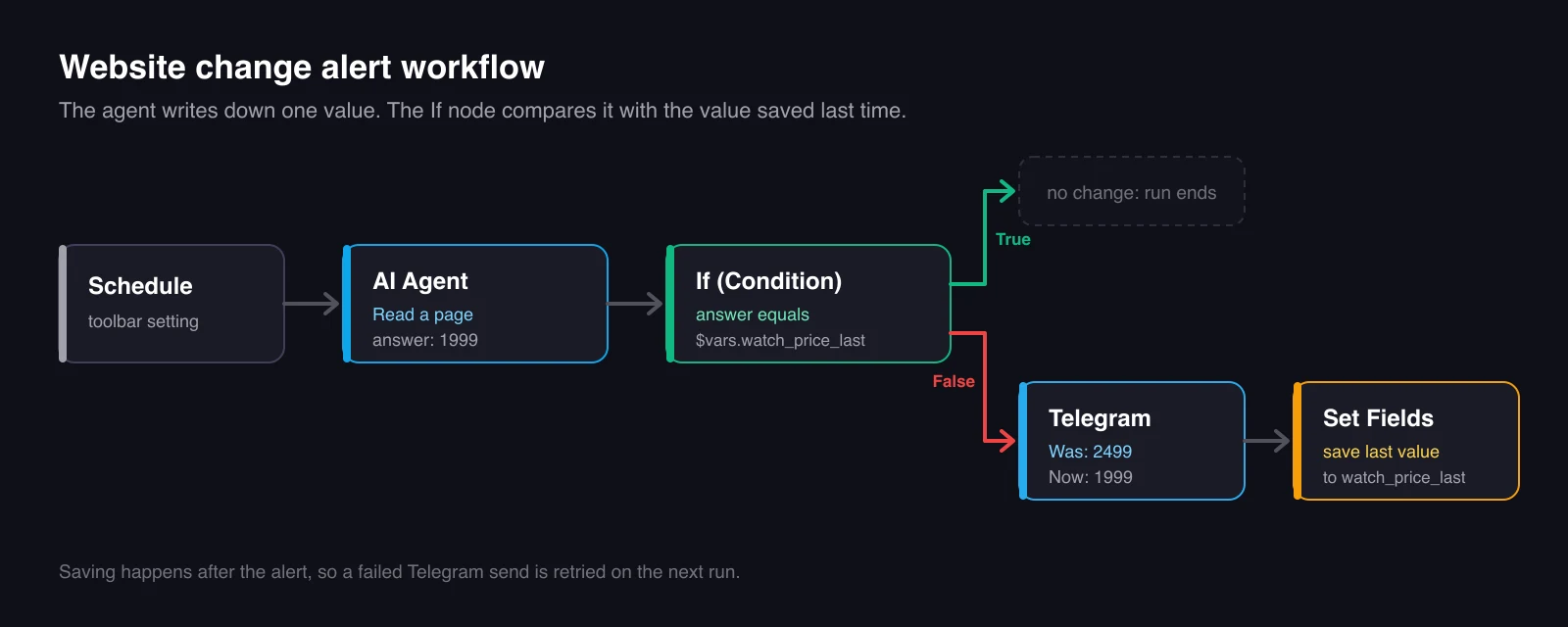
- Add the AI Agent node: Turn on Read a page and turn the search tools off, so it only reads your link and costs less. Set the answer format to Plain text and Max steps to 3. Paste one of the tasks from the next section.
- Add an If (Condition) node: Wire the agent's Answer output into it. Clear Field / Variable Path, set the operator to Equals (==) and Compare Value to
{{ $vars.watch_price_last }}. True means nothing changed, so leave the True output unconnected. - Add a Telegram node on the False output: Pick your bot and chat. Write the message shown below. Because this node runs before the save,
$vars.watch_price_laststill holds the old value here, so the alert can show both. - Add a Set Fields node after the Telegram node: Add one field named
last. For its value, open the variable picker and choose the AI Agent's answer, which inserts{{ $node["AI Agent"].answer }}. Open Save output to variables, switch it on, set the prefix towatch_priceand store only thelastfield. That writes$vars.watch_price_last. - Run it twice: The first run sends an alert that says the value was
none. That is expected, it is how the watcher learns the starting point. Run it again straight away: the second run should stop at the If node and send nothing. - Turn on the schedule: Open Schedule, choose how often to check and switch it on. Scheduled runs happen on the server, so the browser can be closed.
Price changed on Blue Headphones
Was: {{ $vars.watch_price_last }}
Now: {{ $node["AI Agent"].answer }}
https://example.com/product/blue-headphones
Saving last is deliberate. If Telegram fails for any reason, the new value is never saved, so the next run notices the same change and tries again. You never lose an alert because of one bad send.
The task text for prices, stock and job posts
The task is what keeps the answer stable from run to run. Every version below asks for one fixed format and nothing else, because a stray "The price is" on one run and not the next would look like a change. Replace the link with your own.
Price drop alert
Read https://example.com/product/blue-headphones.
Find the current selling price of the main product (not the crossed-out price, not EMI amounts).
Reply with the number only: digits, no currency sign, no commas, no words. Example: 1999
If you cannot find a price, reply with exactly UNKNOWN.
Back in stock alert
Read https://example.com/product/linen-shirt?size=M.
Decide whether size M can be bought right now.
Reply with exactly one word: IN_STOCK or OUT_OF_STOCK.
If the page does not say, reply with exactly UNKNOWN.
New job posting alert
Read https://example.com/careers?team=marketing.
List the title of every open job on the page, one per line, sorted A to Z.
Write the titles exactly as shown and nothing else: no numbering, no locations, no intro line.
If there are no open jobs, reply with exactly NO_JOBS.
For jobs, use a filtered link when the careers page offers one, such as a team or location filter. A shorter page fits inside what the agent reads, and you only hear about roles you would apply for. Sorting the titles stops a simple reshuffle from looking like a new post. Give each watcher its own variable, for example watch_jobs_last, and change the prefix in its Set Fields node to match.
UNKNOWN is useful too. If a shop redesigns its page and the agent can no longer find the price, the answer changes to UNKNOWN and you get a message, instead of a watcher that silently stops working.
Only alert below a target price
Sometimes you don't care about every change, only about the moment a price falls under what you are willing to pay. Add a second If node between the agent and the first one:
- Wire the agent's Answer into the new If node. Clear Field / Variable Path, set the operator to Less than (<) and Compare Value to your target, for example
2000. - Wire its True output into the existing If node that compares with
watch_price_last. Leave its False output empty. - Keep the rest as it is. You now get one message when the price first goes under 2,000, another if it moves again while it is under, and silence the rest of the time.
This is why the price task asks for digits only. Less than (<) compares numbers, and 1,999 or ₹1999 would not read as one.
How often to check, and what it costs
An agent run costs 10 tokens plus 2 for each page read or search that succeeds. With only Read a page turned on, a normal check reads one page, so it costs about 12 tokens. The If, Telegram and Set Fields nodes add nothing. Tokens and pricing explains what a token buys.
| Schedule | Checks per day | Tokens per day (about) | Good for |
|---|---|---|---|
| Once a day | 1 | 12 | Job posts, notices, changelogs |
| Twice a day | 2 | 24 | Prices on most shops |
| Every 6 hours | 4 | 48 | Flash sales and restocks |
| Every hour | 24 | 288 | Only short-lived drops, and only for a few days |
Checking more often rarely catches more, and it puts load on someone else's server for no benefit. Start with twice a day and tighten it only if you actually miss something.
Troubleshooting
| What you see | Likely cause | Fix |
|---|---|---|
| An alert on every run, and the old and new values look the same | The answer has extra words, spaces or a full stop on some runs | Use Plain text format and keep "reply with the number only" in the task. Check the run log for the exact answer. |
An alert on every run that says the value was {{ $vars.watch_price_last }} | The variable does not exist yet | Create watch_price_last in Variables before the first run. |
| The answer is always UNKNOWN | The page loads its content with JavaScript, or blocks automated readers | Run the readability test again. Try the mobile or print version, or another page with the same information. |
| Never any alert, even when the price changed | Telegram was wired to the True output | Move the wire to False. True means the value is unchanged. |
| The run fails with an HTTP 403 or 429 error | The site refused the request | Check less often. If it keeps happening, the site does not want to be read automatically, so stop watching it. |
| The job list comes back short | The careers page is longer than the text the agent reads | Use a team or location filter so the page is shorter. |
To hear about failures as well as changes, open Alerts in the workflow toolbar and choose a chat. It sends a Telegram message when a scheduled run fails, so a broken watcher never goes unnoticed for weeks.
Limits worth knowing
- One page per watcher works best. You can ask one agent to read three pages, but the answer gets longer and less predictable. Copy the workflow for each page instead.
- The agent can misread a page. A model picks the price, so on a cluttered page it might pick a related product's price. Read the first few alerts and make the task more specific if needed, for example by naming the product.
- A run has about 50 seconds. A very slow site can time out. The run then fails, nothing is saved and the next run tries again.
- A variable holds up to 10,000 characters. That is plenty for a price or a list of job titles, but not for a whole page, which is another reason to ask for a short answer.
What to build next
Once the watcher works, the same few nodes go a long way. Send the deal to a Telegram channel for your followers instead of a private chat, add a second message to a family group when a restock happens, or wire the alert into an AI Text Generator that writes a short post about the price drop. These guides cover the pieces:
- Build a Telegram bot with memory: Turn the same bot into an assistant that answers questions and remembers the chat.
- Auto post to Instagram for free: Publish a post or Reel on a schedule from the same workflow editor.
- AI Agent node reference: Every tool, setting and limit of the agent used in this guide.
Build your first page watcher Open the editor, add an AI Agent with Read a page turned on, and point it at the page you keep refreshing. Open the workflow editor
Frequently asked questions
Can I get a Telegram alert when a website changes for free?
Yes, for a small number of pages. A check that reads one page costs about 12 tokens, so a watcher that runs twice a day uses about 24 tokens a day. Telegram bots themselves are free to create and use.
Do I need to know how to code?
No. You wire five nodes together in a visual editor and write the instruction for the agent in plain language. The only special text is a variable name in double curly braces, which you can insert from a picker.
Can it track prices on Amazon or Flipkart?
Large marketplaces generally don't allow automated access and actively block it, so don't build around them. Use their own wishlist or price alerts for those, and use this workflow for brand stores and smaller shops that serve their pages as plain text.
How quickly will I hear about a change?
As quickly as your schedule checks. With a check every six hours, the longest you wait is six hours. For restocks that sell out within an hour, a page watcher is rarely fast enough, and the shop's own notify-me button is the better option.
Why not just ask the AI whether the page changed?
Because an open question gives an open answer, and a model will sometimes call reworded text a change or miss one digit. Asking it for one fixed value and comparing that value exactly gives you far fewer false alerts.
Can I watch several pages?
Yes. Copy the workflow once per page and give each copy its own variable, such as watch_price_last and watch_jobs_last. Separate workflows are easier to debug than one agent reading many pages.